General Scan Converter Installation

|
General Scan Converter Installation |
|
|
Software on supplied disks
Please note: The software included with your scan converter is OPTIONAL. It is not needed to make the scan converter work properly. This software is a screen control utility only. It is not a driver.
If you have not installed the software and you are having trouble making your scan converter work properly, installing the software will not help. It is recommended that you get the scan converter working before you install the software - in most cases it is not needed. (See also Scan converter FAQ's -- Do I have to install the software?)
There are two parts to setting up your scan converter - physical installation and system setup - you can jump to the specific section by clicking on the 'bookmark' below.
SYSTEM SETUP - Does not apply to the MultiPro Plus.
See the attached list of connector types if you are unsure.
IF YOU ARE UNSURE HOW TO MAKE THIS SELECTION, READ THE TV's MANUAL FOR HELP.
NOTE!!! An RF modulator is not the same device as the common video game connector box! Be sure that you are using a true RF modulator when attempting this kind of connection. Most VCRs have a built in RF Modulator, this is the F connector labeled Out, To TV or RF Out. See the VCRs manual for details on using it to show the output of the scan converter. The MultiPro CTV and the 1108 have a built-in RF Modulator eliminating the need for the purchase of a separate unit.
2) LOGISTICS
3) LAPTOP USERS
**AITech's earlier scan converters do not appear as a monitor to some laptops - which may require booting with a computer monitor attached, then switching to the scan converter. **
Your TV will have one or more of the following connectors for inputting a TV signal.
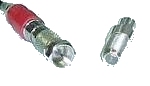
"F" Connector - This is
a Threaded connector used for the antenna, and
Cable TV connectors. This is a standard connector for TV's, and
VCR's. The "F" connector is for RF
(Radio Frequency or broadcast) signals ONLY. RF
signals combine the VIDEO and AUDIO
information into one signal on a high frequency RF carrier.
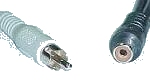
The RCA connector is the industry standard for audio and video connectors
on consumer electronics devices. S-video (separated video) is a standard that
separates the (composite or combined) video signal into its
component parts.
|
|
 |
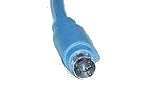 |
| "F" CONNECTORS | RCA CONNECTORS | S-VIDEO CONNECTOR |
SYSTEM SETUP - Does not apply to the MultiPro Plus.
The scan converter requires three basic settings in Windows. These setting will be made differently depending on whether you use Windows 3.x or Win95. In either case you must make sure that you have theses settings made in Windows:
Desktop area = 640x480
Color Palette = 256 colors
Monitor type = Standard VGA 640x480
WRITE DOWN ALL ORIGINAL SETTINGS BEFORE YOU CHANGE THEM.
 |
 |
In Win95 open your Control Panel and select Display. You should have four or more tabs showing. Click the Settings tab. You will notice on the lower left, the setting for the color palette, and next to it the setting for Desktop Area. Set these as directed above. You may have a tab that says Scan Rate or Refresh Rate. Set this for 60 Hz. In most cases you will have to click on Change Display Type and set the Monitor Type to Standard VGA 640x480. In the newer version of Windows 95 use the Advanced Properties button. In this version of Windows 95 you will find a drop down box at the bottom of the Adapter card. Click on the down arrow. You may see a listing of scan rates, select 60 Hz, or select Adapter Default.
You must set the TV for the proper source. Normally the TV is looking for input from its antenna. You must set it to look at the auxiliary input on the rear. This is may be in a menu or via on a button on the remote. In either case you will need the remote to make this setting. If you are connecting to a VCR you must select its external input. This is done with the remote or the VCR's menu system, or with a special channel such as 00. In either case you may have to refer to the unit's manual for proper setup. Refer to your TV or VCR manual to determine how to switch your equipment to the video mode. One clue is that you must NOT see a channel number on your TV screen - it must have something like: video, line, aux, etc. Please refer to a separate document on TV/VCR video mode switching. Please Reference TV/VCR video mode switching
If you are using a laptop computer you must set the computer to output the video signal to the external monitor port. This is usually done with the Fn key and one of the F1...F12 keys. The key is usually labeled LCD/CRT or CRT or has an icon of a computer monitor. Please reference Laptop VGA mode switching. This hot key combination (Fn+F#) usually has three settings:
a) internal only (LCD)
b) both internal and external (Simultaneous or Dual Display mode)
c) external only (CRT).
In the last (c), the internal LCD screen will go black. This is the mode in which you want to do your testing. You may have to refer to your laptop manual for proper settings for the VGA port. See also separate document on Laptop CRT mode switching.
VGA Pass-through
The VGA pass-through is not required to use to use the scan converter. If using this device with a laptop, a VGA monitor may not be wanted nor available. If you are experiencing a problem with your VGA monitor attached to the VGA pass through on your scan converter, there may be something wrong with the unit. You should be able to view your monitor just as you did before the scan converter was attached. Please call our tech support line or visit our Web site for further information and instructions.
Macintosh Installation
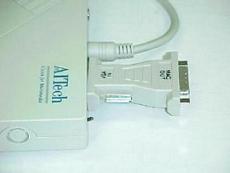
Installing the scan converter on a Macintosh requires the use of the two supplied adapters. Note that one is longer than the other. The longer adapter is connected between the Macintosh and the scan converter (#1 below); the shorter adapter connects between the Mac monitor and the scan converter VGA output connector (#2 below). Note that some Macintosh models may not require the use of both of these adapters.
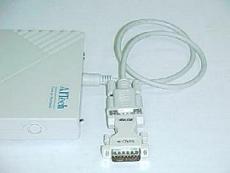
Figure 1 - Showing how to connect the Macintosh input adapter to the scan converter. The Mac In side of this connector connects to your Macintosh VGA (monitor) output connector.
- Connect the VGA IN side of the longer Mac adapter to the side of the scan converter on the VGA Out (VGA connector). Your Macintosh monitor cable then connects to the Mac Out side of the longer adapter.
Figure 2 - Shows how the Macintosh output adapter attaches to the VGA Out connector on the scan converter. Connect your Mac monitor to the Mac Out side of the adapter.
Last update 3-01-2001