WaveWatcherTV-II Troubleshooting Guide

|
WaveWatcherTV-II Troubleshooting Guide |
|
Cables and installation of cables
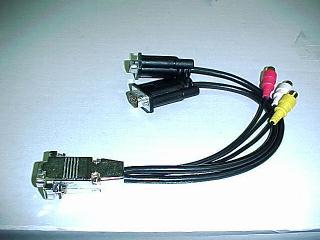 |
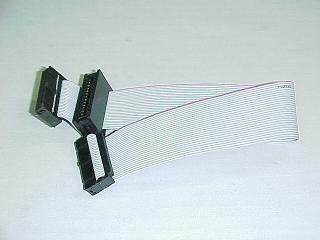 |
| Loop Back Cable | Feature Connector Cable |
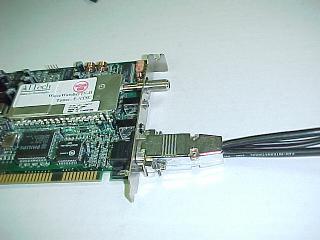 |
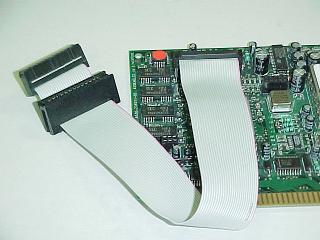 |
|
Loop Back cable installed on board |
Feature Cable installed on board |
Note that the two connectors shown above must be installed on the board correctly in order for this TV card to function properly. The Loop back cable must be installed on the TV card (not the video card) in order for proper video operation.
WaveWatcherTV-II Troubleshooting Guide ISA vs VESA Local Bus Video Cards
If you are installing in a machine
with an ISA video card - see #1
If you are installing in a machine with a VESA Local Bus video card - see #2
PCI video cards are not currently compatible in most cases
If you are not sure which kind of video card you have, do the following:
A) Check the documentation that
came with the video card
B) Call the vendor that you purchased the video card from
C) Call the manufacturer of the video card
D) Ask a friend, or other computer knowledgeable person
#1 ISA Video Cards
On the WaveWatcherTV-II card:
i) Set JP4 so that the jumper only covers one pin, or is off completely
ii) Do NOT use the gray External Loopback Cable (VGA to 8 pin DIN connector)
iii) Once the software is installed - remove VGASNOOP.EXE from the Startup
Program Group
#2 VESA Local Bus Video Cards
On the WaveWatcherTV-II card:
i) Set JP4 so that both pins are covered by the jumper
ii) Connect the gray External Loopback Cable between the output of your video card, and the bottom DIN connector on the WaveWatcherTV-II card
iii) Make sure that the BUS TYPE setting in the Board configuration program's VGA section is set to VLB
If you have a network card in
your system please note the following:
a) The WWTV2 card's default Tuner Port Address is 030C hex - this
will be in conflict with most Network cards. To fix this, set JP3 so that
both pins are covered by the jumper. When the installation software
prompts you, choose the "Alternate" option for the Tuner Port.
b) Network Cards require an IRQ - make sure that it is not the same IRQ
that the
WWTV2 card is set to.
1) No audio at all
a) Make sure that you have
speakers attached to the speaker out port located near the bottom of the
WWTV2 card
b) If you have a sound card, see note (3) below
2) Erratic or uncontrollable Audio problems
If you have a DX/2 DX/4 50,66,80,90,100 processor then you will need a patch file. The file can be downloaded here. Instructions are included in the .ZIP file. This is a pre-beta patch (results are not guaranteed).
3) Sound Cards
A) If your machine has a sound card then you can either :
i) Run a patch cable from
the speaker port on the WWTV2 card to the sound card, OR
ii) Connect a second set of speakers to the output of the WWTV2 card
The proper patch cable has a Male Stereo Mini-Jack on each end. This connector looks just like the connector on a set of walkman headphones.
B) Make sure that the proper mixer level is turned up in the software for the sound card. Most sound cards have software volume controls. See your sound card's documentation for instructions on how to do this.
1) Your screen blanks out when Windows starts, or you run a WWTV2 application
This could be caused by many things including: The wrong settings for the card with JP4 and the External Loopback cable, a missing or incorrectly connected RIBBON CABLE (the cable that connects the WWTV2 to your VGA card), Windows is running at too high of a resolution or color depth, a "Virtual Desktop" option is enabled in your VGA driver for Windows, JP5 needs to be switched, or you have an ET4000 based or PCI style VGA card.
2) The colors under Windows are incorrect, or the display is DIM.
This can happen either when Windows starts or when an Icon from the WWTV2 group are run. This problem is usually caused by one of the following:
A) JP5 on the WWTV2 card needs to be changed to the opposite setting. JP5 controls the timing with respect to the Feature connector.
B) The Windows display driver is set to a resolution or color depth not supported by the WWTV2. Supported modes are -
640x480 up to 64K colors
@ 60Hz Vertical refresh rate
800x600 up to 256 colors @ 56Hz Vertical refresh rate
1024x768 16 colors
C) The computer is using a PCI based VGA card, or other unsupported VGA card. Currently the WWTV2 is not compatible with most PCI based video. There are two options - 1) switch to non PCI based VGA, or 2) wait for a PCI based TV/Capture Card. Currently the only known PCI VGA cards known to work with the WWTV2 are the A) #9 GXE 64 Pro, and B) the Diamond Stealth 64 DRAM
(the VRAM version will NOT work) You will need some additional information to install these cards. One thing to note is that these cards WILL NOT work at colors greater than 256.
Display Irregularities include:
a) Pink ( Magenta ) bands
on sides, top or bottom of TV screen
b) Distorted portions of the TV Screen
c) Jumping TV Screen
Pink or Magenta bands:
This can be corrected by doing the following:
1) Put the TV in
"EDIT VISION" mode (use the STYLE button on the remote)
2) Select "SETTINGS"
3) Select "ALIGNMENT"
4) Adjust the X or Y positions to remove the pink from the display
**NOTE** at this time do not adjust the CROP buttons until you
read the section below.
5) Click the "OK" button
Distorted Portions of the TV Screen
Most distortion looks like the video is not at the edge of the display frame. This could include flashing lines, duplicated portions of the screen, colors, black bands, or other distortions on either the sides, top or bottom of the TV screen.
A jumping TV screen can be another symptom.
This can be removed in most cases by doing the following:
1) Put the TV in
"EDIT VISION" mode (use the STYLE button on the remote)
2) Select the "SETTINGS" option from the menu
3) Select the "ALIGNMENT" option
4) Use the arrows for the "CROP" button that needs
attention
**NOTE** on the left and right buttons the screen move opposite the arrows.
A) The TV only gets channels 1-13
If the TV only receives channels 1-13, and you have Cable attached to the WWTV2 card, then the wrong selection was made during the install. To fix this problem do the following:
1) Using a TEXT editor
such as DOS EDIT, or Windows NOTEPAD, edit the file C:\wwtvii\tvsystem.ini.
2) The second line is the key to which type of reception you will
get. Use the following table to choose what the line should read
according to how the WWTV2 is set up:
a) Saved=NTSC
Broadcast ( this is for a regular roof antenna or rabbit ears)
b) Saved=NTSC Cable ( this is for Cable TV system users)
**NOTE** You can NOT use
the Cable setting for regular antennas, nor can you use the
Broadcast setting for cable TV systems
3) Save the file and exit the editor
4) Exit from Windows if running
5) Turn off the machine, and then re-power it on.
B) The TV receives no stations
1)The software is the
incorrect version. See note (A) above and follow the same steps.
2)Contact Technical Support at AITech - The BBS is recommended - and
obtain a new set of diskettes.
C) There seem to be cable channels missing (usually 16-20, and 50-63)
This is a software problem that has been fixed. You will need to obtain new diskettes to fix this problem. The install diskettes can be found on the AITech BBS, or can be sent by Technical Support
D) You are not getting all 181 channels
Unless you have a Cable-TV system that broadcasts on all 181 possible channels, you will NOT receive 181 channels. The tuner on the WWTV2 card is CAPABLE of picking up 181 channels IF they are present. Most cable systems broadcast fewer than 80 channels.
The WaveWatcherTV-II has the ability to store a list of all present channels through the preset option. This however has one small nuance that can be confusing.
When the Auto-Scan option is run, each viewable channel is assigned a preset number starting at 1, and each subsequent viewable channel receives the next higher preset number.
IF you run the autoscan option, then the remote acts differently. When using the number pad on the remote, you have to enter the PRESET number of the channel that you want, not the channel number. Here is an example:
Preset # Channel #

1   -   ch2

2   -   ch4

3   -   ch5

4   -   ch7

5   -   ch8

6   -   ch9

   ETC.
Notice that channels 1, 3, and 6 are missing - but the preset numbers do not jump.
The most common problem in capturing still images is that when the image is saved, and then viewed with a program such as Windows Paint, or other graphic image editor, is that the image comes up all black, white, or full of colored bands. This is caused by a memory conflict in the Computer System.
IF you have:
A) 16 MB or MORE of RAM in
the system, then:
**NOTE** This is explained in more depth in the manual on page 88.
1) Run the "WWTV2
Board Configuration" program located in the WaveWatcherTV-II
program group.
2) Select the "HARDWARE" button
3) Click on the "Memory Base" box
4) Using the scroll bars, move up the choice list
5) Choose an appropriate Page Frame setting.
6) Edit your Config.sys file and make the changes indicated in the
manual on page 88
**NOTE** you will only ADD the EMM386.EXE line if there isn't
already one in the config.sys file, otherwise you will just add the
X=nnnnn-nnnnn to the existing line.
B) 8 MB or LESS of RAM in the system
1) Run the "WWTV2
Board Configuration" program located in the WaveWatcherTV-II
program group
2) Select the "HARDWARE" button
3) Make sure that the "Memory Base" setting is 14. This
may have to be adjusted on some systems, but for the most part 14 is
fine.
If the setting above is OK, then there is most likely a memory conflict in the system. Use the steps described in (A) above to choose a Page Frame option.
No Capturing - If you are having trouble capturing an .AVI file, then try one or more of the following suggestions - they can all cause you to have trouble capturing.
1) Make sure that the IRQ
set in the software ( WWTV2 board configuration) matches the jumper
setting on the WWTV2 card, and that it doesn't conflict with any
other device in the system.
2) Make sure that the Memory Base setting is not in conflict with
the amount of RAM in the computer, and that it does not conflict
with anything else in the system. See the section above titled
"Capturing Still images" for more information about the
memory settings. Also see page 88 more details.
3) Be sure to set the file name and file size in the capture utility
before trying to capture. These settings are located in the
"file" section of the capture utility.
4) DEFRAGMENT YOUR HARD DRIVE! This step alone can cure some capture
problems.
5) Check the amount of Virtual memory Windows has allocated - too
much can take up valuable RAM.
6) Try Excluding the memory area used by your VGA card and / or
running Memmaker after excluding the page frame option described
above.
No Sound in capture - This is usually caused if:
A) There is NO sound card
in the system. Make sure that you have an MCI compatible sound card
in the computer, and that it's drivers are properly loaded.
B) The Audio Input mixer level is not turned up, or is not in record
mode. Use the mixer utility that came with the sound card to adjust
these settings, or see the documentation for the sound card to
determine how to record with the sound card.
C) There is no cable connecting the WWTV2 card and the sound card.
See the information listed above on NO SOUND for more information.
D) You may have a DX/2 DX/4 or other "clock doubling" CPU
- see the section above on sound problems for more details.
E) Has the audio on the WWTV2 been enabled? You must make sure the
audio has been turned on prior to entering the capture utility.
First open the TV application, and select the desired channel or
input, audio as well as video. Exit the TV program, and when
prompted, leave the audio on in the background. This will allow the
sound be captured if the audio is cabled correctly (see above).
Remember, if you don't hear any sound, then neither will the sound
card.
Magenta bands in captured video and/or capture screen
This is caused by an incorrect setting for the Vertical ( top or Bottom ) or Horizontal ( sides ) Sync settings.
1) Open the WWTV2 Board
Configuration program
2) Select the "VGA" Button
3) Set the appropriate sync to negative
4) Exit the configuration utility
5) Open the TV application
6) Select the "Edit Vision" screen
7) Select the "Settings" option
8) Select the "Alignment" option
9) Use the X or Y adjustments to remove any magenta from the TV
display
10) Exit the Alignment option, and the TV utility
The capture file contains nothing but garbage
This is a memory conflict with the system. See the section above on working with memory conflicts.
Pre recorded AVI files do not play
This is caused by a setting in the AVI capture driver.
A) Open the MAIN program
group
B) Open the CONTROL PANEL utility
C) Select the DRIVERS applet
D) Highlight the AURA 1 Compression driver
E) Click the SETUP button
F) Set the driver to either the second or third option
G) Select the OK button, and then Close the Drivers applet
"Possible incorrect hardware setting or tuner port mismatch"
This error is usually corrected by changing the TUNER PORT ADDRESS jumper- JP3 so that it is closed. You must also change the Software setting in the WaveWatcherTV-II Board configuration program.
The other possible conflict is with the I/O Address setting. Change the I/O address in the board configuration software to a different number. Next change the SW1 settings according to page 13 in the manual.
Be sure that the Address that you choose is not in conflict with something else in your system such as a SCSI controller, a CD-ROM controller, Scanner card, Sound Card, or other hardware device. To determine which addresses are available, either consult the manual for the product in question, or the technical support staff.
"Check Vertical Sync interrupts" - when capturing an .AVI file
This error is usually
caused by four things: 1) a conflict with the chosen IRQ setting for
the WWTV2 card.
2) The vertical refresh rate of the VGA card is set too high
3) There is an issue with the amount/usage of memory in the system.
4) The hard drive to which you are capturing is fragmented
SOLUTIONS:
1) Change the IRQ setting in the software, and choose an IRQ that is not in use by the system. If you have a PCI based computer you may have to change a setting in the CMOS to allow the chosen IRQ to be available. If you are not sure how to make changes in your CMOS, check the manual for the computer, or check with their technical support. Most often the changes are made in the "PLUG and PLAY" section, or the "PCI Peripherals" section. the mode needed is that of IRQ Available to ISA, or NOT RESERVED. Next change JP1 to reflect the change you made in the software.
2) Make sure that the Vertical Refresh rate of your VGA card is set properly. The proper settings are determined by the resolution you are running windows at:
640X480 16, 256, or 64K
colors = 60Hz refresh
800X600 16, or 256 colors = 56Hz
1024X768 16 colors = 56Hz, or Interlaced mode, depending on the VGA
card.
3) If you have 16MB RAM in the system, look at page 88 in the WWTV2 manual and follow the directions under "Systems with 16MB RAM and unable to capture"
If you have less than 16MB RAM try the above fix anyway, since some systems reserve some resources such as memory addresses, there may still be a conflict.
4) If the files on the
Hard Drive that you are capturing too is fragmented, then the WWTV2
could have trouble saving the file. You need to run a
defragmentation program such as Norton Utilities, or the DEFRAG
program that comes with DOS version 6.2X.
"Tuner Port mismatch Check JP2 - or hardware not
installed"
This error message is a mistake - the Jumper that needs checking is
JP3 - this is a tuner port conflict. The Tuner Port is set with JP3.