|
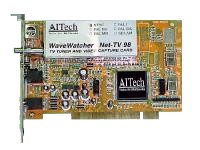
Resolving WaveWatcher Net-TV 98 Card IRQ Conflicts |
 |
|
Resolving WaveWatcher Net-TV 98 Card IRQ Conflicts |
|
Interrupt Requests and how to deal with them.
Common symptoms of an IRQ conflict:
Every device in your system communicates with the processor with an interrupt request. This only means that the device presses the ‘door bell’ to tell the processor to come and get the data it has ready. If you had two people pressing your doorbell at the same time you would not know who to talk to and if they talked at the same time you could not understand them. While this is certainly simplified, it is a good example of what is happening in your computer. Some devices can share an IRQ. This can be the case when two devices will not be working together at the same time or two items that Windows can easily switch back and forth between. For instance you cannot share an IRQ with your mouse because it is always on and working. Once in a while a modem might get put on top of your mouse. The first time you use your mouse when the modem is on will cause the system to lock up.
Please refer to your manual on verifying the installation of your TV card driver.
When you first install your TV card, Windows will find the card and request you insert the installation disk for the driver. After installing the driver verify the installation by going to the Device Manager. Right click on the My Computer icon and click Properties at the bottom of the dialog box.
|
Device Manager |
|
|
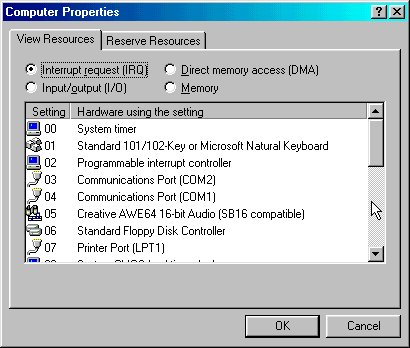
IRQ list |
|
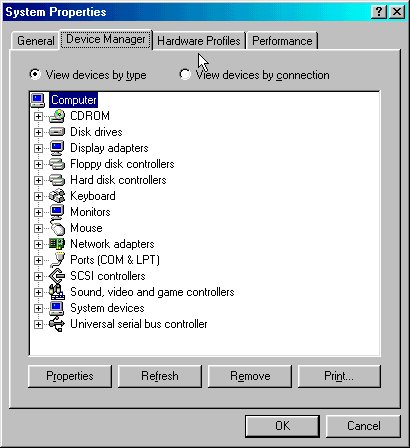
You should now be in System Properties – click the Device Manager tab. Click the Properties button at the bottom of the dialog box. Please refer to the two graphics above.
You should now be looking at the list of IRQ’s under the View Resources (IRQ) tab. Look down the list to find the WaveWatcher Net-TV 98. If you do not see it the WaveWatcher driver listed, it was not installed correctly. Restart your system and try again with the installation. You should see ONLY ONE device assigned to the IRQ shown in front of the WaveWatcher card entry. The only exception to this rule is the Holder for PCI Steering. This is not considered a device and will not cause a conflict with the IRQ. If you cannot get Windows to assign an IRQ, you may wish to contact your PC manufacturer for more ideas.
Since you have gotten this far we can assume you must have more than one device assigned to the same IRQ. It is possible for you to have an IRQ that has three or more devices as well as three (or more) copies of the Holder for PCI Steering all assigned to the same IRQ. Windows 95/98 will often report that there are no conflicts and PnP (Plug ‘n Play) thinks things are ok. But when you try to run the TV card it will usually lockup the system.
Resolving IRQ Conflicts
Resolving an IRQ conflict is usually not fun and may take several tries and some time to clean up. The reason for this is that Windows is supposed to handle this automatically and PnP is not perfect. PnP does not give us an easy way to clean up its mistakes. Note that you must install the software for the Net-TV 98 before you verify the installation of the driver and determine if you have an IRQ conflict. Checking on driver status before installing software will indicate a problem with the driver that does not exist.
You will want to look in the section
for Plug and Play (PnP) and/or PCI setup.
You may have to remove the TV card in order to make this work for you. Then shut down the computer properly – make the changes described above – reinsert the card and on the way back up re-enable that IRQ so the TV card can use it.
If you continue to have a problem with resolving an IRQ conflict please call our tech support line for more personal and direct help.
See #2 above and enter the device manager.
| Image showing System Properties after Device Manager tab is clicked. |
|
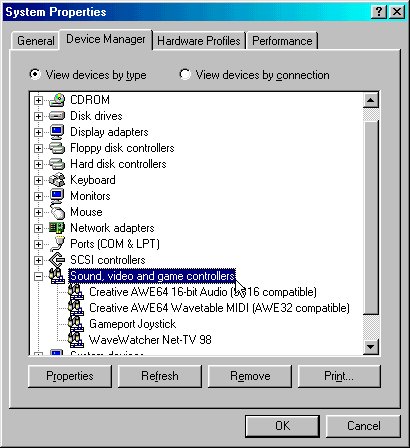
| Double click on Sound, video and game controller to open up the list as shown here. Or select it and click the Properties button at the bottom. |
|
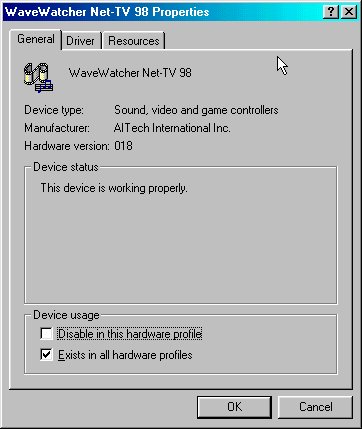
| Image showing the TV card properties. Click the Resources tab. |
|
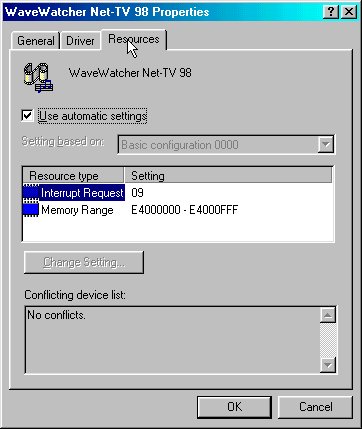
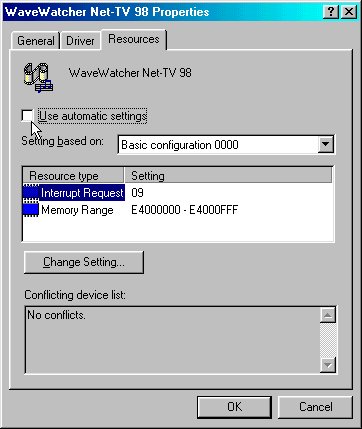
| Image showing the Resource card. |
|
| Unclick the Use automatic settings box and select Interrupt Request as shown here. |
|
| Click the Change Setting... button. Note that even if you do have an IRQ conflict the box at the bottom of this card will tell you there are no conflicts. |
|
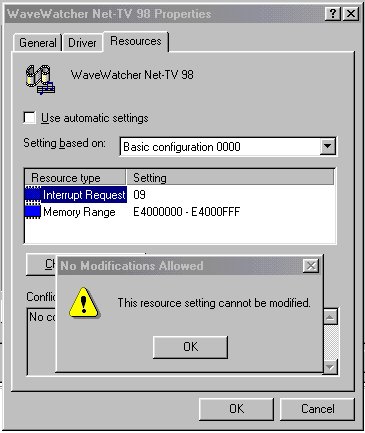
| In many cases you
will get the warning shown here. If this is the case you will not be
able to use the reserve or change settings functions.
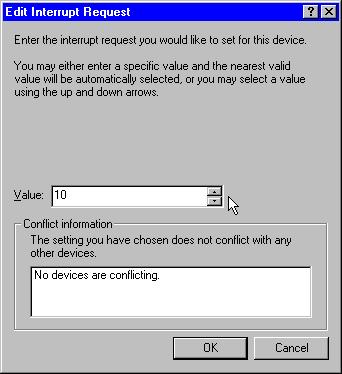
If you did not get this warning screen then you should have gotten the dialog box shown below. If you get this screen please skip the next screen - jump down to the red asterisk. |
|
| Select the IRQ that
you know is free.
Click OK back to the desktop and restart your computer. Check the device manager - your TV card should now be assigned to the IRQ that you selected. |
|
|
Double click Computer or click Properties button |
|
| Click Reserve Resources tab |
|
| Make sure the IRQ button is selected. Then click the Add button at the bottom. |
|
| Select the IRQ you want to reserve. Note that this procedure may not always work for you. We know that it does on some systems. The idea is to stop Windows from using an IRQ - then by removing a card or disabling it, force the system to move the TV card (or other card) off this IRQ -- then when removing the reservation here, hoping that the Plug and Play manager will not put both boards back on the conflicting IRQ. Unfortunately this is what it may often do. |
|
Last update 11-10-2001