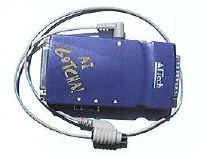
| AIgotcha2! Capture | |
How to capture using the AIgotcha2!
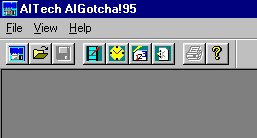
Bring up the software using your shortcut or Start/Programs/AIgotcha95 from the Start button.
| Select AITech AIgotcha95 to run the program. |  |
Click File, then Select Source. You will see window on left. Select AITech AIGotcha95 and click Select button.
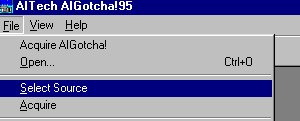 Select source and select AITech AIGotcha2! |
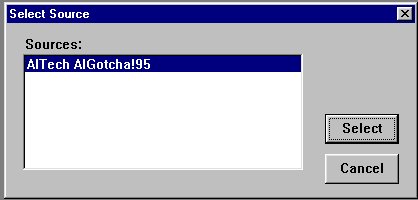 |
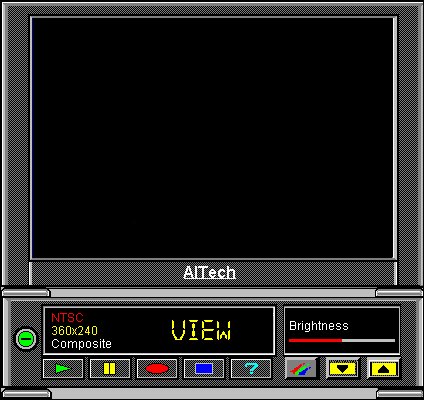
Click the Blue handicam button under File - you will see the preview screen shown below. You should see your video image in the preview screen updating every second or so. (The screen capture was left black deliberately.)
AIGotcha2! Tool bar and TWAIN interface. |
 |
The image below shows the capture buttons and their functions below them.
| Capture buttons and their functions. | 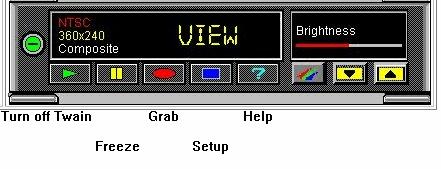 |
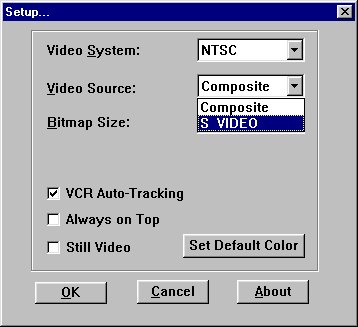
If you do not see your image in the preview screen and you are using the S-Video input you will need to select the correct video source. Click the blue Setup button and change the Video Source to S-Video (shown below).
Setup window showing Video Source selections. |
 |
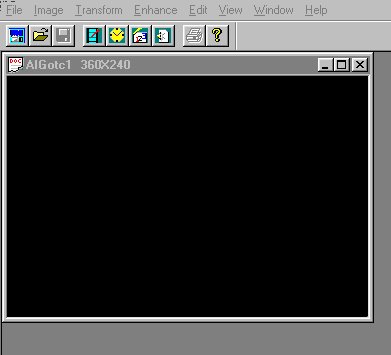
When you see the image you want in the preview screen or on your video monitor click the red Grab button. You will see your capture in a small window in the upper left of your screen (see below).
Example of a screen capture (blank deliberately). |
 |
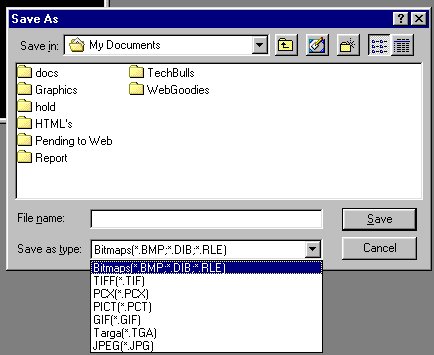
You may want to make several grabs, they will stack up in your main window. When you have captured the images you want it is time to save them. Select one to save by clicking on it. Click File and Save As... You will see the dialog box below. Select the format you wish to save your file in (see below) and note the extension spelling. You must also select the folder to save the images in. Use the upper window to browse to the proper folder.
Save as dialog box. Choose file type and folder to save image in. |
 |
The last step in the save process is to type in a file name - remember to add the period (dot) and the file extension chosen in file type just below this. Example: MyDog01.bmp.
| Type in file name and extension. | 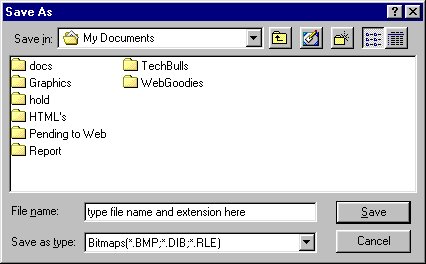 |
You have now captured and saved your AIGotcha images.
Last update 02-17-99